iOS 개발을 하면서 그래픽을 건드리게 된다면, Metal 이라는 단어를 듣게 된다.
OpenGL, DirectX처럼 GPU를 직접 제어할 수 있는 API로, Apple 생태계(iOS, macOS 등)에 특화된 성능 최적화된 API이다.
이런말을 사용할 때면 항상 아쉬운게 처음 접하는 입장에서는 저런식의 정의가 쉽게 와닿지 않는다.
그래서 항상 내가 이해할 수 있는 방법으로 이해하고, 나중에 다시 정의를 보면 잘 이해가 된다.
그래서 나는 Metal을 이렇게 이해하고 학습을 시작했다.
화면에 2D나 3D로 뭔가를 그리거나 연산을 할 때 직접 GPU를 활용할 수 있도록 하는 Apple 전용 그래픽 API
사실 예제에 관련된 포스팅을 하기 전에 Metal에 대해서 먼저 자세히 알아봐야 하지만,
스터디에서 발표할 내용을 앞으로 여기에 작성할거기 때문에, 이번 주 발표할 내용을 이렇게 먼저 작성하게 되었다.
개인적으로 느끼기에 Metal은 상당히 어렵고 찾을 수 있는 한국어 자료도 많이 없다.
그렇기 때문에 간단한 예제와 함께 설명을 작성해두면 나중에 내가 다시 볼 수도 있고, 누군가에게 설명하기에 용이할 것 같았다.
(사실 GPT와 함께라면 못할 것이 없지만)
이 예제는 카메라로 찍히는 이미지를 Metal을 통해 색을 반전시키는 예제다.
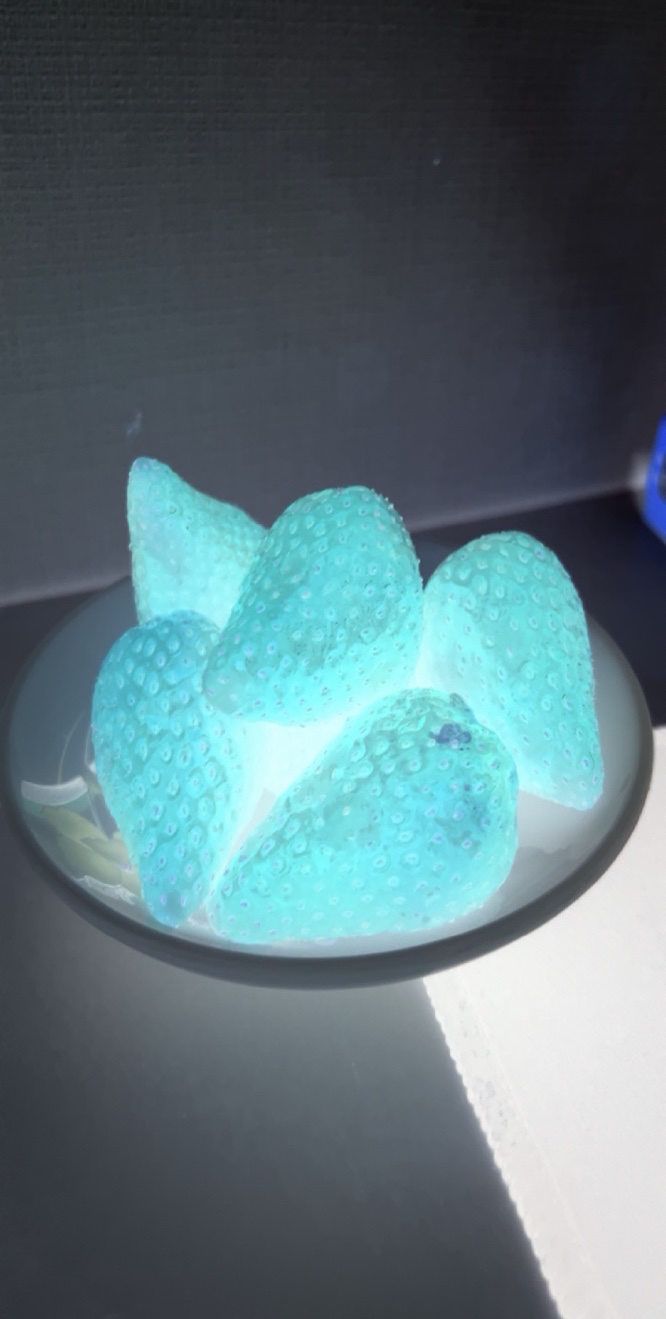
Metal에는 Render Pipeline과 Compute Pipeline이 있는데, 뭔가를 그리기 위한 Render Pipeline을 설명하기에 아주 좋은 예제이다.
먼저 순서를 설명하면 다음과 같다.
- AVFoundation을 통해 Video Frame Output을 받아 저장한다.
- MTKView에서 저장된 Frame을 가져와 Metal 연산을 커밋한다.
- Metal Shader를 통해 Frame(Texture)에 대한 연산을 한다. (색 반전)
- 연산된 결과가 MTKView에 그려진다.
위 순서가 반복되면서 Camera 촬영한 세상이 색이 반전되어 화면에 연속적으로 그려진다.
사용한 언어: Swift, C++ (Metal Shader)
먼저 Metal로 연산된 결과를 보여주기 위한 전용 View, MTKView를 만들어야 한다.
UIKit 기반이기 때문에 UIViewRepresentable를 사용해야 한다.
import MetalKit
import SwiftUI

struct MetalVideoFilterView: UIViewRepresentable {

  func makeUIView(context: Context) -> MTKView {
    let mtkView = MTKView()
    return mtkView
  }

  func updateUIView(_ uiView: MTKView, context: Context) {}
}
import SwiftUI
struct ContentView: View {
var body: some View {
MetalVideoFilterView()
}
}
이 상태로 실행하면 아무것도 보이지 않는다.
MTKView에 그린 것이 없기 떄문이다.
MTKView에 Metal과 관련된 추가 작업을 해준다.
  func makeUIView(context: Context) -> MTKView {
    let mtkView = MTKView()
    mtkView.preferredFramesPerSecond = 30 // 초당 30번 MTKView를 그린다.
    mtkView.delegate = context.coordinator // Delegate는 Coordinator에서 구현한다.
    return mtkView
  }

  func updateUIView(_ uiView: MTKView, context: Context) {}

  func makeCoordinator() -> Coordinator {
    return Coordinator()
  }
// MARK: - Coordinator
final class Coordinator: NSObject, MTKViewDelegate {
func draw(in view: MTKView) {
// 초당 30회 호출된다.
}
func mtkView(_ view: MTKView, drawableSizeWillChange size: CGSize) {}
}
1초에 30번씩 draw 메서드를 타면서 MTKView에 무언가를 그릴 것이라는 것을 세팅했다.
이제는 실제로 그리기 위한 준비를 해보자
  func makeUIView(context: Context) -> MTKView {
    ...
    mtkView.device = MTLCreateSystemDefaultDevice() // Render에 사용할 GPU 객체 생성
    context.coordinator.setupMetal(view: mtkView) // 현재 MTKView로 Metal에 필요한 세팅
    return mtkView
  }
final class Coordinator: NSObject, MTKViewDelegate {

  // MARK: - Properties

  private var device: MTLDevice!
  private var commandQueue: MTLCommandQueue!
  private var pipelineState: MTLRenderPipelineState!
  private var textureCache: CVMetalTextureCache!

  ...
}

extension Coordinator {
  func setupMetal(view: MTKView) {
    device = view.device
    commandQueue = device.makeCommandQueue()

    let library = device.makeDefaultLibrary()!
    let vertexFunc = library.makeFunction(name: "vertexShader")
    let fragmentFunc = library.makeFunction(name: "filterFragment")
    let pipelineDesc = MTLRenderPipelineDescriptor()

    pipelineDesc.vertexFunction = vertexFunc
    pipelineDesc.fragmentFunction = fragmentFunc
    pipelineDesc.colorAttachments[0].pixelFormat = view.colorPixelFormat
    pipelineState = try! device.makeRenderPipelineState(descriptor: pipelineDesc)
    CVMetalTextureCacheCreate(nil, nil, device, nil, &textureCache)
  }
}
이 예제에서 Metal을 사용하기 위한 순서와 방법은 다음과 같다.
GPU 생성 ->
CommandQueue 생성 ->
Shader(함수)를 정의 및 생성 ->
어떤 파이프라인을 사용하고 어떤 포맷을 사용할 건지 생성 -> 여기까지가 setupMetal()
CommandBuffer 생성 ->
명령의 Encoder 생성 ->
Encoder에 Shader 등록 및 파라미터 등록 ->
어느 Drawable(View)에 그릴지 CommandBuffer에 지정 ->
명령 commit ->
GPU 연산 시작
간단한거 맞나?
Coordinator의 setupMetal은 어떤 파이프라인을 사용할 것인지까지 미리 준비하는 메서드다.
여기까지 하고 실행해보면

에러가 난다. (?)
let library = device.makeDefaultLibrary()!
여기서 에러가 나는데, 위 코드는 프로젝트 내에 있는 Shader를 가져온다.
당연하게도 아직 Shader를 추가하지 않았기 때문에 찾지 못해서 에러가 나는 것이다.
Shader를 작성하는 .metal 파일을 추가해주자.

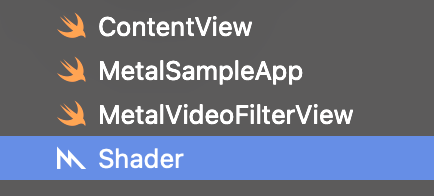
새로운 Metal 파일을 생성해주고,
#include <metal_stdlib>
using namespace metal;

struct VertexOut {
  float4 position [[position]];
  float2 texCoord;
};

vertex VertexOut vertexShader(uint vid [[vertex_id]]) {
  float2 pos[4] = { {-1,-1}, {1,-1}, {-1,1}, {1,1} };
  float2 uv[4]  = { {0,1},    {1,1},    {0,0},    {1,0} };
  VertexOut out;
  out.position = float4(pos[vid], 0, 1);
  out.texCoord = uv[vid];
  return out;
}

fragment float4 filterFragment(
  VertexOut in [[stage_in]],
  texture2d<float> inTex [[texture(0)]]
  ) {
  constexpr sampler s(address::clamp_to_edge);
  float4 c = inTex.sample(s, in.texCoord);
  return float4(1.0 - c.rgb, c.a);
}
RenderPipeline이기 때문에 vertex shader와 fragment shader를 추가해준다.
vertex shader는 화면 전체를 덮는 사각형을 생성한다.
fragment shader는 사각형을 구성하는 모든 픽셀의 좌표 + 현재 촬영된 texture를 받는다.
촬영된 texture를 픽셀의 좌표로 샘플링하고, 그 위치의 rgb에 반전을 연산한다.
아주 간단하게 설명하면..
vertex로 화면 전체를 덮는 사각형을 만들고
fragment로 사각형의 각 픽셀에 현재 촬영된 이미지의 픽셀을 찾아서 해당 색을 반전해서 적용하는 것이다.
일단 이렇게 이해하고 넘어가자.
이제 Texture를 촬영할 AVFoundation을 추가하자.
  func makeUIView(context: Context) -> MTKView {
    ...
    context.coordinator.setupCaptureSession(on: mtkView)
    return mtkView
  }
// MARK: - Coordinator
final class Coordinator: NSObject {
// MARK: - Properties
...
private var currentTexture: MTLTexture?
private let captureSession = AVCaptureSession()
}// MARK: - Setup
extension Coordinator {
func setupMetal(view: MTKView) {
...
}
func setupCaptureSession(on view: MTKView) {
guard
let camera = AVCaptureDevice.default(
.builtInWideAngleCamera, for: .video, position: .back
),
let input = try? AVCaptureDeviceInput(device: camera) else {
return
}
captureSession.sessionPreset = .hd1280x720
captureSession.addInput(input)
let videoOutput = AVCaptureVideoDataOutput()
videoOutput.videoSettings = [
kCVPixelBufferPixelFormatTypeKey as String: kCVPixelFormatType_32BGRA
]
videoOutput.setSampleBufferDelegate(self, queue: DispatchQueue(label: "VideoQueue"))
captureSession.addOutput(videoOutput)
// 카메라 방향 보정
if let connection = videoOutput.connection(with: .video) {
connection.videoOrientation = .portrait
connection.isVideoMirrored = false
}
DispatchQueue.main.async { [weak self] in
self?.captureSession.startRunning()
}
}
}// MARK: - AVCaptureVideoDataOutputSampleBufferDelegate
extension Coordinator: AVCaptureVideoDataOutputSampleBufferDelegate {
func captureOutput(
_ output: AVCaptureOutput,
didOutput sampleBuffer: CMSampleBuffer,
from connection: AVCaptureConnection
) {
guard let pixelBuffer = CMSampleBufferGetImageBuffer(sampleBuffer) else { return }
let width = CVPixelBufferGetWidth(pixelBuffer)
let height = CVPixelBufferGetHeight(pixelBuffer)
var cvTexture: CVMetalTexture?
CVMetalTextureCacheCreateTextureFromImage(
nil,
textureCache,
pixelBuffer,
nil,
.bgra8Unorm,
width,
height,
0,
&cvTexture
)
if let cvTex = cvTexture, let texture = CVMetalTextureGetTexture(cvTex) {
currentTexture = texture
}
}
}
카메라를 사용해서 촬영을 시작하고, 각 프레임별로 Delegate에 떨어질 때마다 currentTexture를 업데이트 한다.

<key>NSCameraUsageDescription</key> <string>카메라 권한 요청 문구</string>
이제 텍스쳐도 계속 업데이트 된다. 마지막으로 draw를 작성해주면 끝난다.
// MARK: - MTKViewDelegate

extension Coordinator: MTKViewDelegate {
  func draw(in view: MTKView) {
    guard let drawable = view.currentDrawable,
          let texture = currentTexture,
          let desc = view.currentRenderPassDescriptor else { return }

    let commandBuffer = commandQueue.makeCommandBuffer()!
    let encoder = commandBuffer.makeRenderCommandEncoder(descriptor: desc)!
    encoder.setRenderPipelineState(pipelineState)
    encoder.setFragmentTexture(texture, index: 0) // fragment shader로 텍스처 전달
    encoder.drawPrimitives(type: .triangleStrip, vertexStart: 0, vertexCount: 4) // 4개의 점으로 전체 화면을 덮는 삼각형 2개 생성
    encoder.endEncoding() // 지금까지의 명령 인코딩
    commandBuffer.present(drawable) // 그려줄 drawable 등록 (MTKView)
    commandBuffer.commit() // 명령 커밋
  }

  func mtkView(_ view: MTKView, drawableSizeWillChange size: CGSize) {}
}
위 과정이 Metal(GPU)로 명령을 전달하고 실행하는 과정이다.
여기까지 마치고 나면 완성된다.
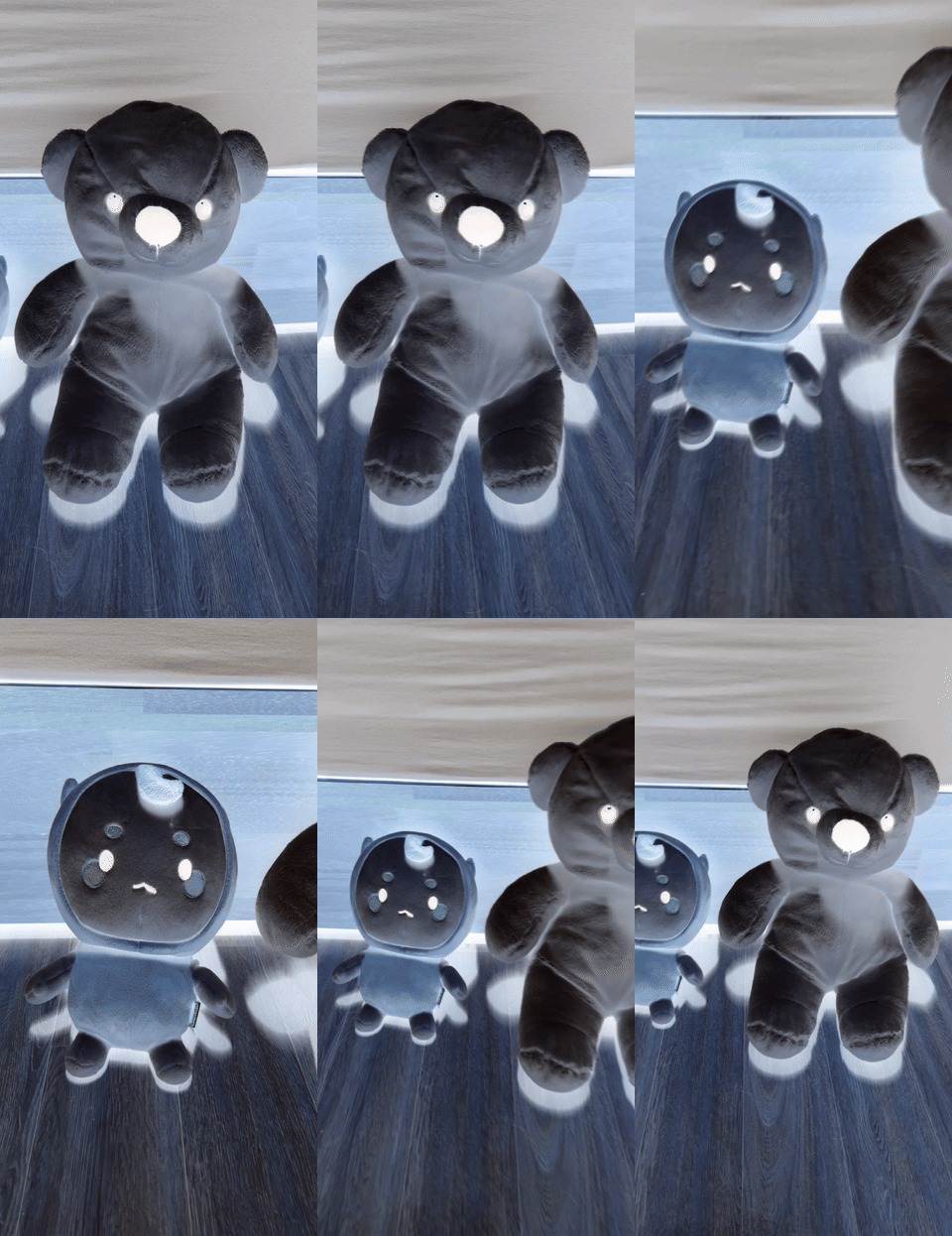
여기까지 아주 간단한(?) Metal Sample 앱을 만들어 보았다.
다음에는 Metal에 관한 기초 내용이나 GPGPU를 활용한 앱을 게시해 봐야겠다.
전체 코드 (github)
https://github.com/dudgkr2014/MetalSample_1_ColorInvert/tree/main
GitHub - dudgkr2014/MetalSample_1_ColorInvert: BLEV First Metal Sample App. Color Invert
BLEV First Metal Sample App. Color Invert. Contribute to dudgkr2014/MetalSample_1_ColorInvert development by creating an account on GitHub.
github.com